How to Use Your Smartphone as a Webcam for Your Laptop: Top Apps That Actually Work
Discover how to use your smartphone as a high-quality webcam for Zoom, streaming, and meetings. Easy setup, top apps, and expert tips included.
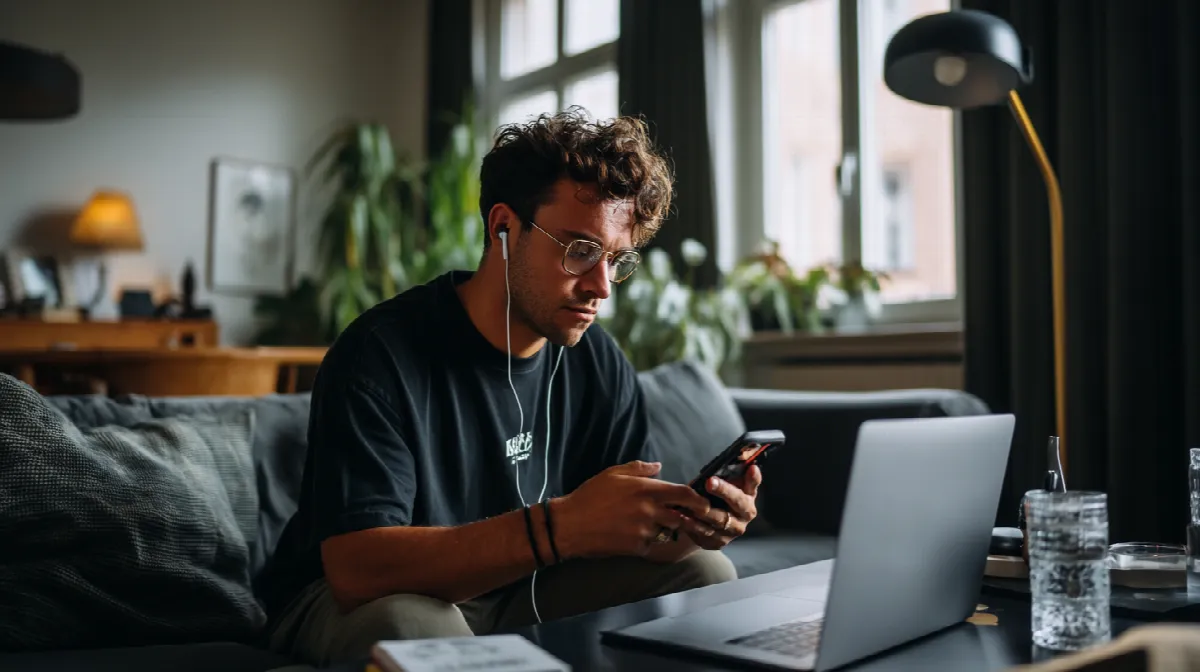
If your laptop’s built-in webcam is grainy, outdated, or just flat-out broken, you’re not alone. Many people are turning to their smartphones as a replacement, and it makes total sense — most modern phones have cameras that are better than what any standard laptop can offer. Whether you’re joining a Zoom meeting, streaming on Twitch, or maybe just chatting with a friend, using your phone as a webcam can be a game-changer. It’s kind of like the difference between low-stakes slots and the premium quality you’d expect at Arab Top Casino — the experience is simply sharper and smoother.

Why Use Your Smartphone as a Webcam?
The first and most obvious reason is camera quality. Your phone likely has better resolution, better sensors, and better color accuracy than any webcam built into a typical laptop. Most phones also handle low-light situations far more effectively. That’s a big plus if you’re working from a dimly lit room or just don’t want to set up extra lighting. The second reason? Flexibility. Smartphones are portable, meaning you can easily position them at the right angle, distance, or height without having to buy a separate webcam or stand.
Connecting Your Phone to Your Laptop
The process usually involves installing an app on both your smartphone and your computer. These apps connect the devices through either Wi-Fi or USB. USB tends to be more stable, but Wi-Fi is more convenient for quick setups. Once both devices are connected, your phone camera will function as a webcam and can be selected in Zoom, Google Meet, Microsoft Teams, OBS Studio, or wherever you need it.
There are a lot of apps that claim to get the job done, but only a few are worth your time. Let’s go over the top ones.
DroidCam is probably the most well-known option for Android users, although it also works with iPhones. It offers both free and paid versions. The free version includes basic features like USB or Wi-Fi connection, while the pro version gives you HD resolution, better controls, and no ads. It’s lightweight, fast, and reliable.
EpocCam is a favorite among iPhone users. It has a very simple setup process and supports both macOS and Windows. The paid version unlocks higher resolution and advanced settings like manual focus and exposure. It also works smoothly with OBS and popular video conferencing apps.
Iriun Webcam is a no-frills app that does the job with minimal setup. It’s available for Android, iOS, Windows, macOS, and even Linux. If you just need something that works with no complications, Iriun is often the go-to.

A Real Moment That Proved the Point
I once joined an online panel for work using my laptop’s built-in webcam. The video quality looked like it was broadcast from a toaster. Mid-call, I switched to using my phone through DroidCam. The difference was instant. My colleagues literally commented on how much better my image looked. It wasn’t just clearer — it actually made me feel more present in the conversation. That one switch made the whole experience feel more professional.
Things to Keep in Mind
Using your smartphone as a webcam isn’t just plug-and-play. You need to allow camera permissions, grant firewall access if needed, and occasionally adjust video settings to get the best quality. Also, make sure your phone doesn’t go into sleep mode while you’re using it. Some apps include options to keep the screen awake, but you may have to tweak your phone settings manually.
Stability is another point to consider. If you’re connecting via Wi-Fi and your signal drops, your video might freeze or disconnect. That’s why many people prefer a USB connection — it’s simply more reliable, especially for longer calls or streaming.
If you’re using your phone as a webcam for an extended period, you’ll want to keep it plugged in. Most of these apps can eat battery fast, especially if you’re using them over Wi-Fi. Also, you’ll need a stable place to mount your phone. A small tripod, phone stand, or even a stack of books can do the trick. The angle of the camera matters a lot — eye level is best, and front-facing light helps with image clarity.
Why This Is a Smart Choice
Investing in a new webcam might cost you $50 to $150, and it still might not outperform the camera you already carry in your pocket. By turning your phone into a webcam, you’re getting high-quality video without any extra expenses. It’s the smart, resourceful solution. And in a digital world where image is part of communication, that matters.
Just like smart players choose reliable, top-rated platforms such as <strong>Rabona</strong> for a seamless experience, smart users are learning to get the most out of their devices. Using your smartphone as a webcam is part of that mindset — doing more with what you already have.
Final Thoughts
Your smartphone is a powerful tool. With the right apps, it becomes more than just a communication device — it turns into a studio-quality webcam that can elevate your video calls, streams, or meetings instantly. The setup is easy, the cost is zero if you already own the phone, and the results speak for themselves.
Whether you’re working from home, creating content, or just want to look your best on camera, don’t settle for grainy built-in webcams. Try one of these apps, make the switch, and see the difference — because in the end, clear communication isn’t just about what you say, it’s also how people see you.