iOS 18: Three New Ways to Customise Your iPhone’s Home Screen
Discover how iOS 18 lets you personalise your iPhone with built-in icon customisation, flexible placement, and minimalist options. Create your perfect Home Screen.
By Vadim Kouznetsov, published

Apple’s latest mobile operating system, iOS 18, introduces unprecedented levels of customisation for iPhone users. Building on previous iterations that allowed widget placement and Lock Screen customisation, iOS 18 takes personalisation to new heights. Let’s explore three exciting ways you can now make your iPhone truly your own.
1. Built-in Icon Customisation
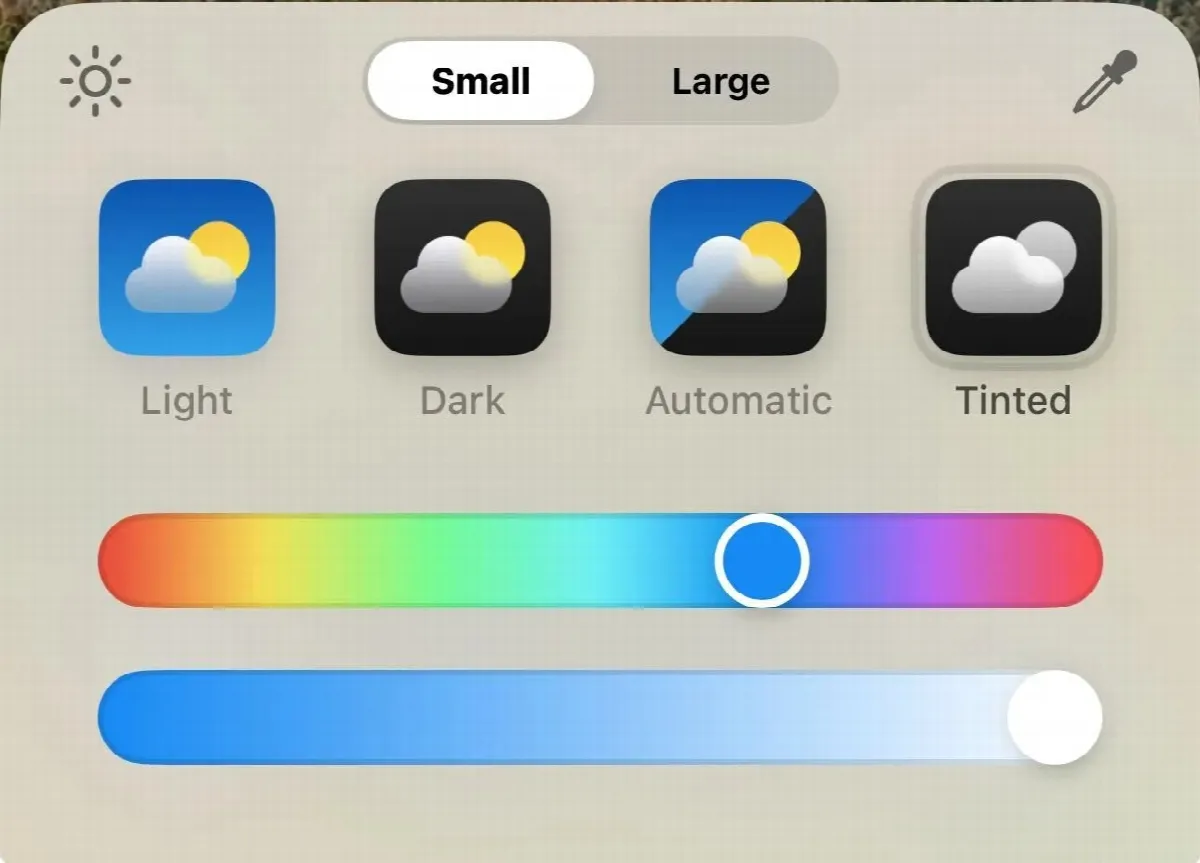
Gone are the days of relying on third-party apps and complex workarounds to change your app icons. iOS 18 introduces a native tool for customising your icons’ colour scheme.
How to Access the New Customisation Mode:
- Press and hold on your iPhone’s Home Screen
- Tap the upper-left “Edit” button
- Select the new “Customise” option
New Icon Options:
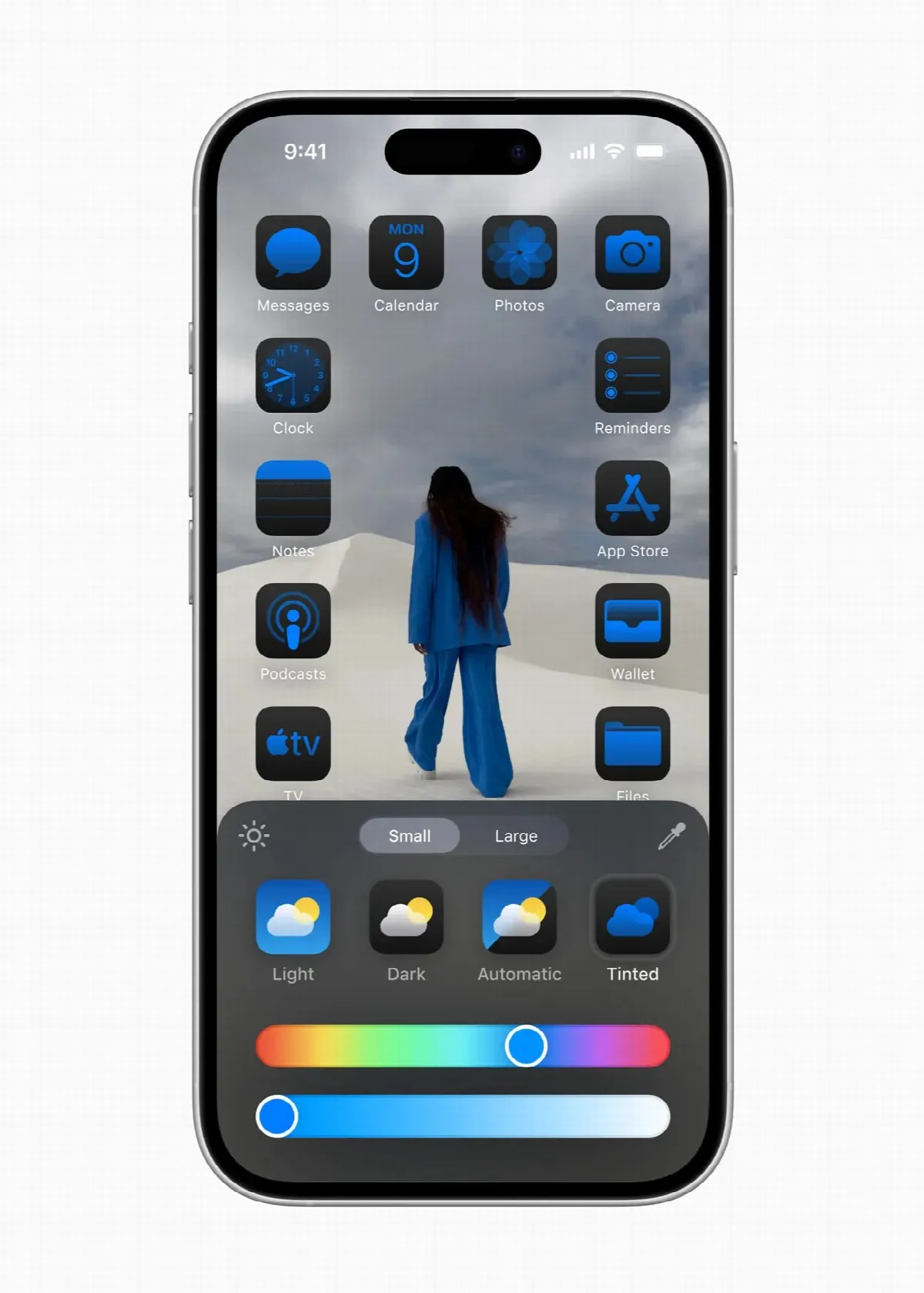
- Light Mode: The standard bright icons
- Dark Mode: Icons with darker backgrounds
- Automatic Mode: Shifts between light and dark based on time of day
- Tinted Mode: A new option allowing you to pick a colour from your wallpaper to tint your icons
Tinted Mode Features:
- Use the eyedropper tool to select a colour from your wallpaper
- Adjust the shade and saturation with two bottom sliders
- Create a cohesive look that complements your background image
While some designers have criticised the aesthetic results, the feature caters to users who enjoy personalisation, particularly younger demographics who embraced custom icons when iOS 14 was released in 2020.
2. Flexible Icon Placement
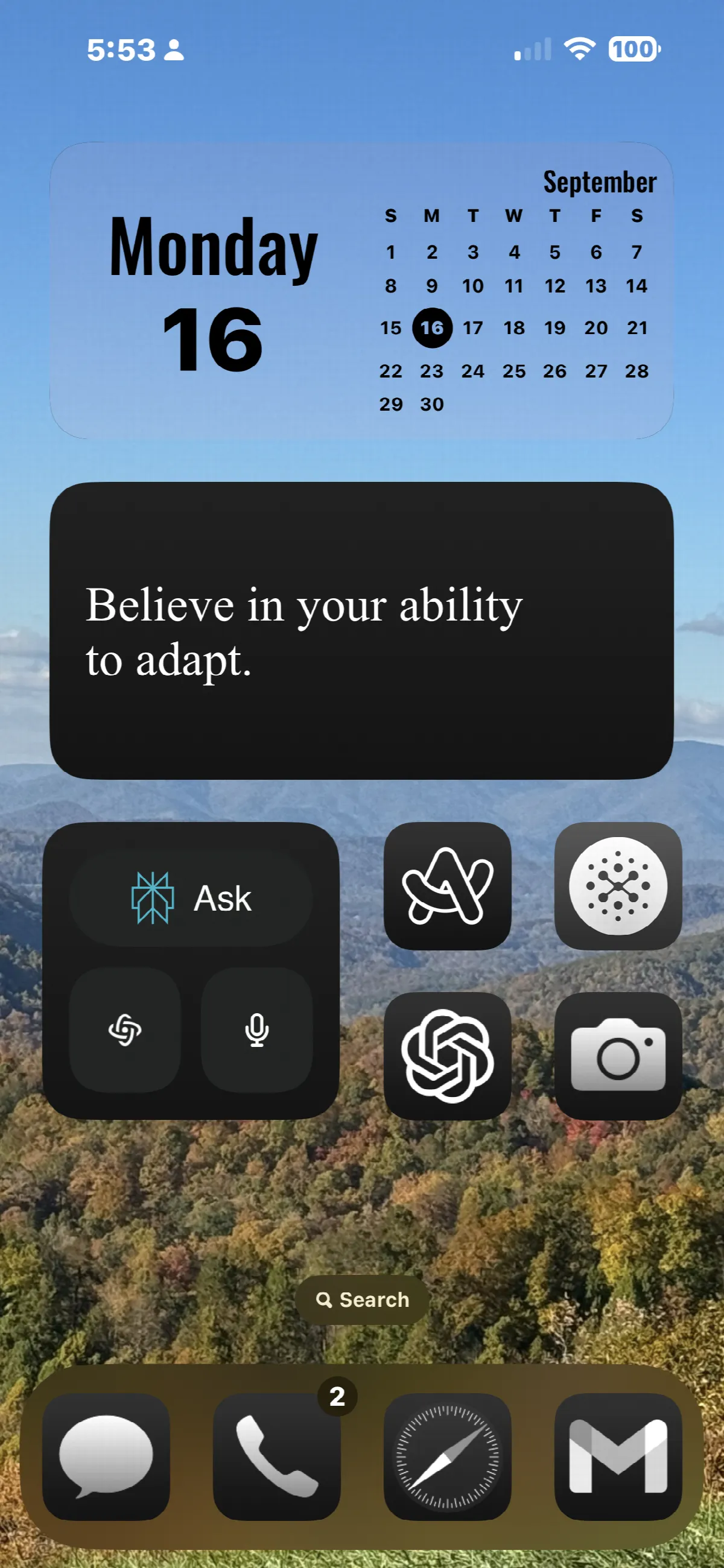
iOS 18 breaks free from the rigid grid layout of previous versions. Now, you can place icons and widgets anywhere on your Home Screen. This freedom allows for creative arrangements that:
- Frame your wallpaper
- Place icons only at the screen bottom
- Create unique patterns or designs
This feature opens up new possibilities for personalisation, letting users truly make their Home Screen their own.
3. Minimalist Home Screen Options
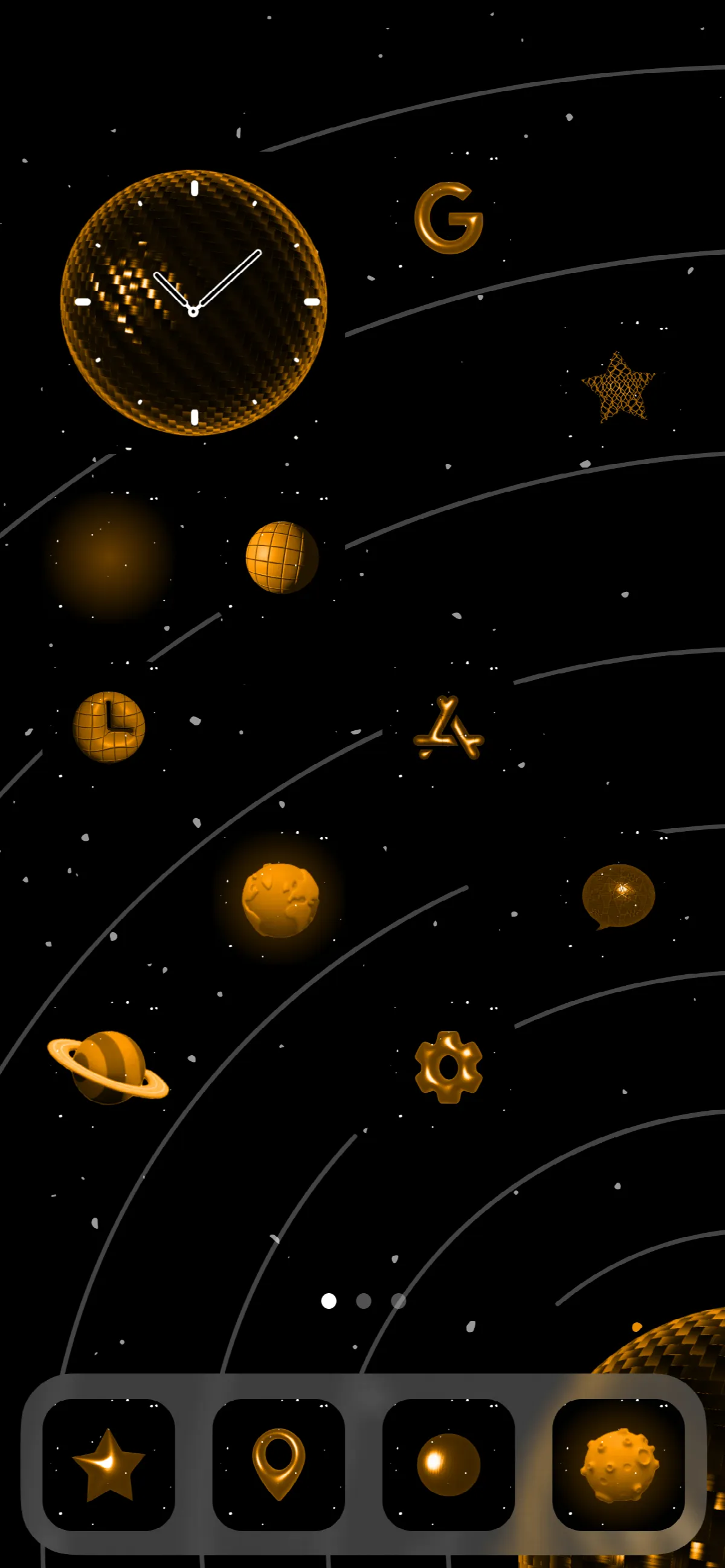
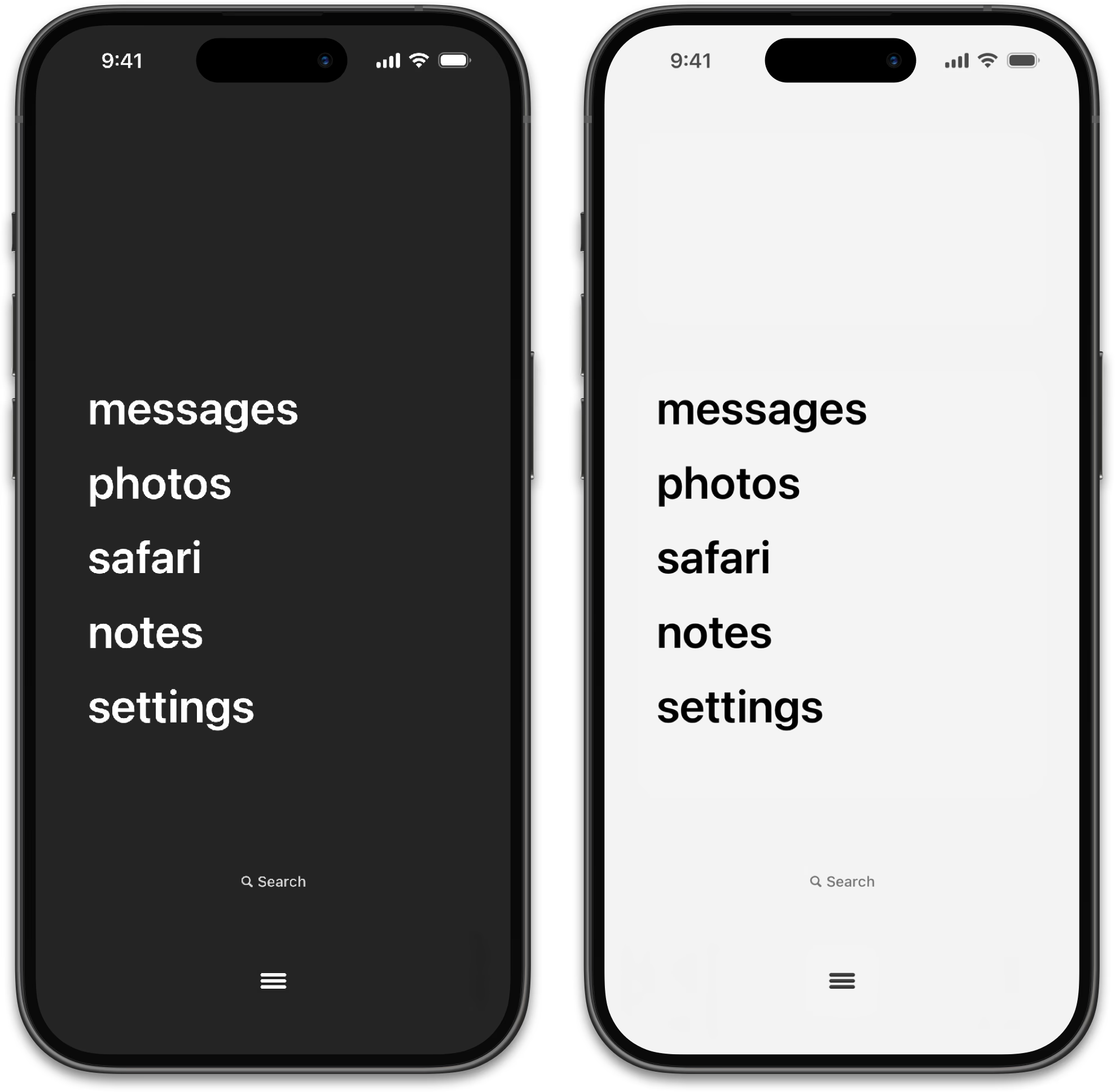
For those seeking a cleaner, more streamlined look, iOS 18 enables the creation of nearly icon-free Home Screens.
How to Achieve a Minimalist Look:
- Use apps like Widgetsmith, updated for iOS 18
- Create large, label-less widgets with customised actions
- Replace traditional app icons with text-based widgets or action shortcuts
Widgetsmith’s developer, David Smith, notes: “The aesthetics now possible in iOS 18 are really transformative to how your home screen feels. Since Apple drops the requirement for widgets to have their subtitles, you can completely take over your iPhone and make all of it your own.”
Other apps like Dumb Phone offer similar minimalist options, which some users report helps reduce screen time.
Creative Themes: Icons as Part of Your Wallpaper
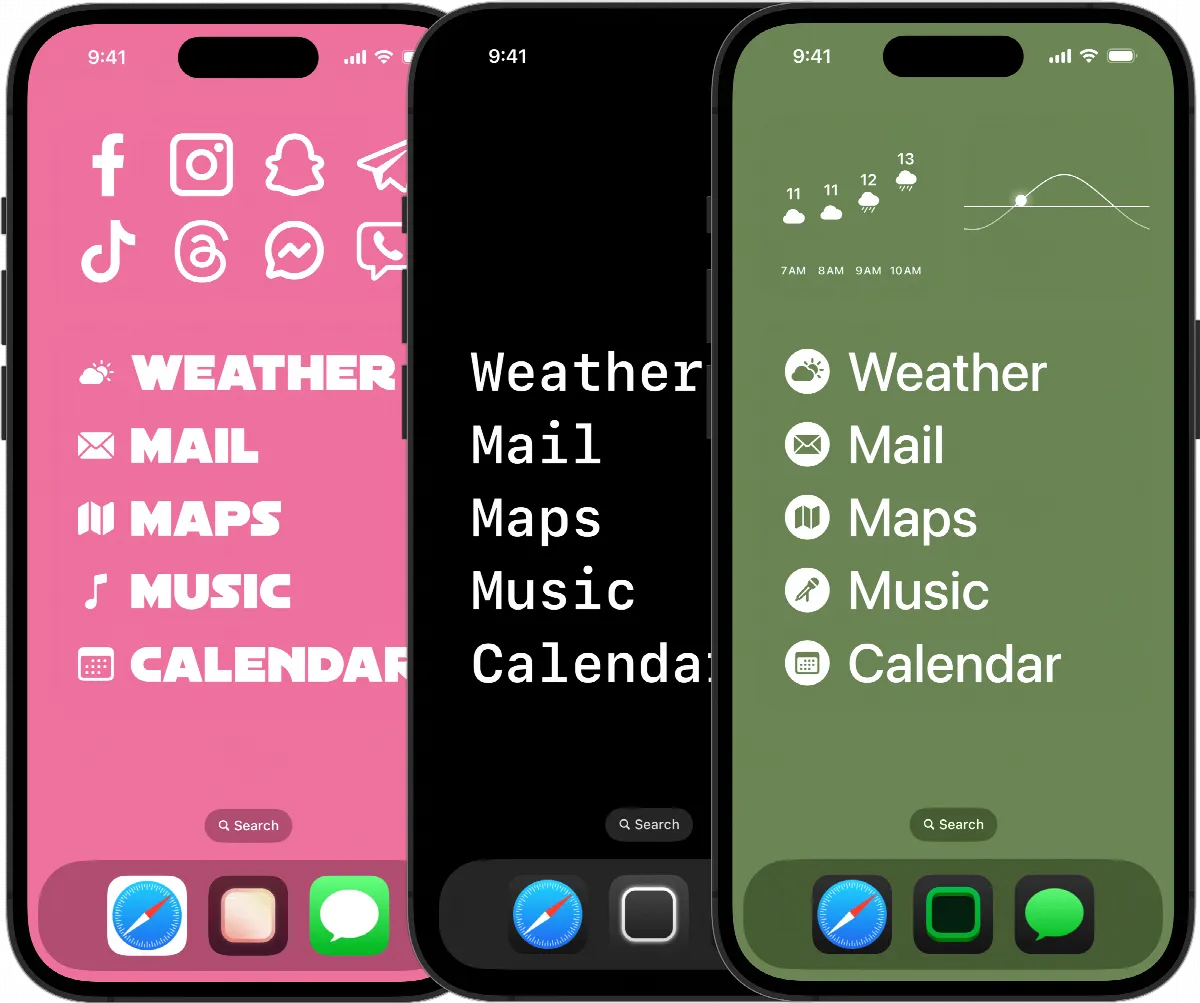
The new icon placement flexibility allows for innovative themes where icons become part of the overall design. Apps like Themify are capitalising on this with iOS 18-inspired themes, including:
- Icons as planets in a solar system wallpaper
- Small icons integrated as wall décor in room-themed backgrounds
Additional Personalisation Options in iOS 18
Beyond Home Screen customisation, iOS 18 introduces:
- Customisable Lock Screen shortcuts
- Reorganised and customisable Control Center
- Ability to add third-party app actions to Control Center (developer support required)
Conclusion
iOS 18 marks a significant step forward in iPhone personalisation. Whether you prefer a colourful, tinted look, a minimalist design, or creative themed layouts, the new customisation options cater to a wide range of preferences. As users explore these features, we’re likely to see an explosion of unique, personalised iPhone interfaces that truly reflect individual tastes and needs.
The UAE week, every Monday
The week's stories on jobs, visas, money and daily life in one short email. Unsubscribe in one click.